
Where agents run
This page explains where an agent's runs happen: in a person's own place, a container on the company's server, under their subscription; on a person's computer; or by itself on the server with an API key. It shows how to make your place, how to connect a computer, what the list in Admin → Computers tells you, how to keep the worker up to date, and how to start the server seat.
Three places to run
Each agent has a setting that says how it works: open the agent, go to the Engine & model section and look at Where it works.
- With its owner. The agent runs under its owner's own Claude subscription (Claude Code) or ChatGPT sign-in (Codex), and only while the owner is at work. No API key is needed. It runs in the owner's place on the server, a container the platform makes for them, or on a computer the owner connected. For a company, the place is the usual way: nothing is installed on anyone's computer, and the agent works in a closed container. A computer suits a small team without a server, and work that needs the person's own machine.
- By itself. The agent runs on the server seat, on a model connection from Admin → Models. The connection's key stays on the Agentome server: the seat reaches the model through the server with the run's own token. Nobody needs to be at work, and tool calls that your policies mark Ask still wait for a person. Needs a license key.
Either way, the agent's instructions, memory, history and settings stay on the Agentome server; the place or the machine only borrows them for one run.
A program called the worker does the running. In a place and on the server seat it runs in a container; on a computer it runs as a background service of your login session. In the API all of them are called seats.
A place on the server
When an admin has turned places on, Computers has Your place on the server: Make my
place gives you a container of your own on the company's server. Open terminal opens a
terminal in it, in the browser: run claude and sign in once with your subscription (or
codex login --device-auth for ChatGPT: it gives a link and a code to enter in your browser),
and your agents run in it while you work in Agentome, with
nothing installed on your computer. It wakes when one of your agents has work and you are here,
and sleeps when nothing has run for a while; your sign-in and your agents' working folders stay
while it sleeps. In your place each agent keeps a working folder per repository between runs, so
its dependencies and builds stay; whatever a run left uncommitted is saved to a branch
agent/leftover-… before the next one starts. Working folders → Start fresh empties an agent's.
Delete place removes it, with its sign-in and folders.
Each run in your place gets two containers of its own, deleted when it ends: the CLI container, with Claude Code or Codex and your sign-in, and the sandbox, where every command the agent runs goes, without your sign-in. So whatever a command does, it cannot read your subscription. A project's database or other services run beside the sandbox, and a run may have a Docker of its own for tests that start containers, when the admin turned it on.
Your place reaches Agentome and the model vendors, and nothing else unless an admin opens it: the hosts a project allows, such as the company's GitLab or Jira, open to the runs of that project's tasks only, and to the sandbox, not the CLI. A run that needs another host fails to reach it; ask an admin to add it to the project. More on how runs are kept apart in Security.
What a computer needs
- macOS, Linux or Windows. The connect script installs the worker as a launchd agent on macOS,
as a
systemd --userservice on Linux, and as a scheduled task that starts at logon on Windows. Windows has no sandbox for the agent's commands; see Connect a Windows computer. - Node.js 20 or later (
node -v). - Claude Code, installed and signed in with the Claude subscription the agents may use. Run
claudeand sign in. The connect command checks for it and stops if it is missing or signed out. Sign in withclaudeitself: a sign-in kept only in an environment variable does not reach the background service. - Codex, for Codex agents: 0.163.0 or later (
npm install -g @openai/codex), signed in withcodex loginunder the person's ChatGPT subscription. The worker looks forcodexon itsPATHwhen it starts; the Codex inside the ChatGPT app is not on thePATHand is not found. - A server address over HTTPS. Connect computers only once the server has an HTTPS address: the connect script downloads the worker from the server, and over plain HTTP anyone on the network path could hand the computer code of their own. See HTTPS with the proxy profile.
Connect a computer
Every person connects their own computer. The runs of your agents go only to your computers.
Make sure Claude Code is installed and signed in: run
claudein a terminal.In Agentome, open Admin → Computers.
Click Connect a computer. With no computer connected yet, the button is in the middle of the page; otherwise it is at the top right.
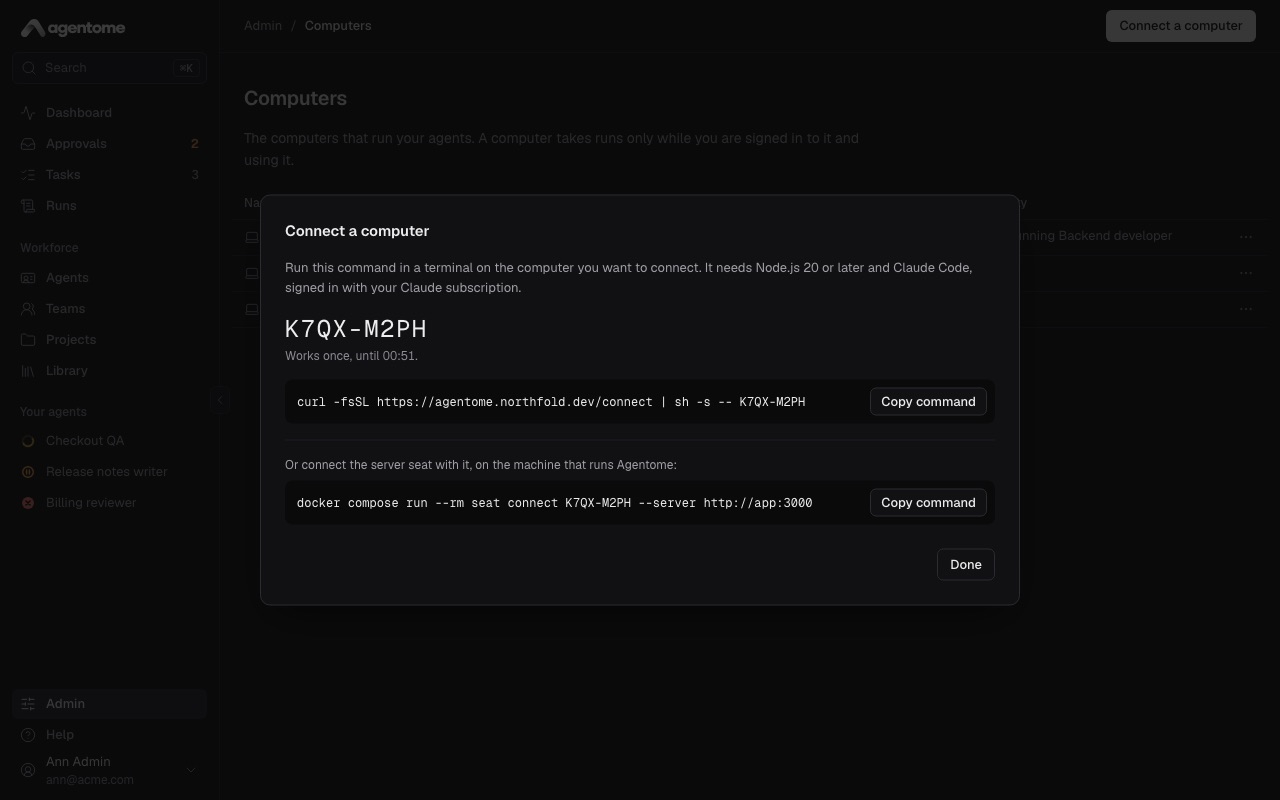
The dialog says: "Run this command in a terminal on the computer you want to connect. It needs Node.js 20 or later and Claude Code or Codex, signed in with your own subscription." It shows a code and when it expires ("Works once, until 14:20."). The code works once, for ten minutes.
Click Copy command and run the command in a terminal on the computer:
curl -fsSL https://agentome.example.com/connect | sh -s -- K7QX-M2PHClick Done. The list reloads and shows your computer.
The command does this, in order:
- Checks that Node.js 20 or later and Claude Code are there, and that Claude Code is signed in.
- Downloads the worker as one file into
~/.agentome/bin/and keeps it only if its SHA-256 matches the one the server names. - Connects the computer with the code.
- Installs and starts the background service, which starts again each time you log in.
- Prints how to check it:
~/.agentome/bin/agentome-worker status.
If the service cannot be installed (no systemd --user, say), the computer is still connected, and
the command tells you to take runs in a terminal with ~/.agentome/bin/agentome-worker run.
If the server runs from source with pnpm dev, the dialog shows a pnpm command and says Run it
in a checkout of the repository. The worker's own
README has the steps.
Running the connect command again with a new code connects the computer anew, as a new entry in the list. Revoke the old entry then.
Connect a Windows computer
The dialog has two tabs, macOS or Linux and Windows; in a browser on Windows it opens on Windows. That command runs in PowerShell:
& ([scriptblock]::Create((irm -UseBasicParsing https://agentome.example.com/connect.ps1))) K7QX-M2PHThe computer needs Node.js 20 or later, and Claude Code or Codex signed in with the person's own subscription. Claude Code on Windows runs the agent's commands in Git Bash, so it needs Git for Windows too. A computer with Codex alone takes the runs of Codex agents only.
The command says what Windows lacks, downloads the worker into %USERPROFILE%\.agentome\bin and
checks its checksum, connects the computer, and adds the scheduled task Agentome worker, which
starts the worker without a window each time the person logs in and starts it again after a crash.
Windows has no sandbox for the agent's commands. On macOS and Linux a command cannot read the person's home folder or reach any host but Agentome's; on Windows it reads what the person can read and reaches any address the computer reaches. So a Windows computer takes no runs until an admin allows it:
- The row in Admin → Computers says Waiting for an admin, and the runs of its agents wait in the queue.
- An admin opens the row's menu and chooses Allow runs without a sandbox. The dialog says what the agent's commands can reach; Allow runs lets the computer take runs.
- Stop runs without a sandbox in the same menu takes it back: the computer takes no more runs, and its run in progress is cancelled.
Allow it on a computer kept for work, such as a company virtual machine. Other differences on Windows:
- A stopped run ends at once: Windows has no way to ask the CLI to finish first.
- What a finished CLI left running, a dev server say, is not stopped with it.
- The file tools still cannot open the computer's connection, the gateway's settings or the person's keys, but a command can.
Check the worker with node $env:USERPROFILE\.agentome\bin\agentome-worker.mjs status; its log is
%USERPROFILE%\.agentome\logs\worker.log. To update it, run the command from the Windows tab with
update in place of the code, or copy it from Update the worker in the row's menu. Run it in
PowerShell on the computer's desktop: from another session, such as SSH, Windows does not let it
stop the worker that runs, and it says so rather than start a second one.
The worker finds Claude Code and Codex on the PATH and where their installers put them without
adding them to it: %USERPROFILE%\.local\bin for Claude Code, %APPDATA%\npm for Codex.
To sign in to Codex on Windows, run codex.cmd login: PowerShell's default execution policy
refuses the codex.ps1 that npm puts beside it. The worker and the connect command are not
affected by that policy.
Check a connected computer
Run this on the computer:
~/.agentome/bin/agentome-worker statusIt says which server the computer is connected to, whether the worker runs, when it last asked for a
run, the run in progress and whether the service is installed. When an engine is signed out it says
so ("not signed in, so its runs wait"), and when nobody has used the computer for a while it says
"Taking no runs". The worker's log is ~/.agentome/logs/worker.log.
The Computers list
Admin → Computers lists your computers. An admin sees every computer and seat. The page says: "The computers that run your agents. A computer takes runs only while you are signed in to it and using it."
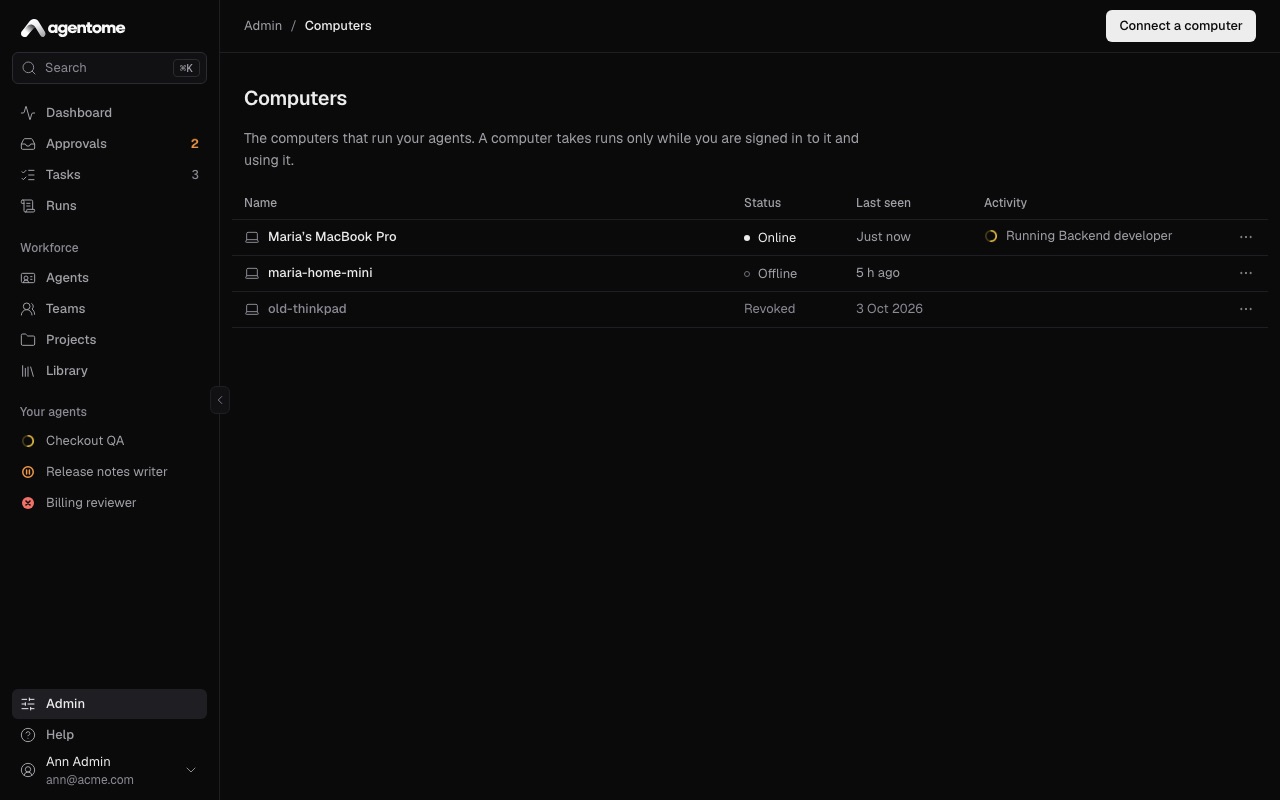
Each row has these columns:
| Column | What it shows |
|---|---|
| Name | The computer's name, with an icon for a computer or a server seat |
| Status | Online, Offline or Revoked |
| Last seen | When the worker last asked for a run, or Never |
| Activity | What it is doing now, or why it cannot take a run (see below) |
A computer is Online when its worker asked the server for a run in the last two minutes. An idle worker asks every 25 seconds, and a busy one reports every 30 seconds. Offline means the computer is off, asleep, logged out or not connected to the network. Revoked means it was disconnected and can no longer take runs; the row stays as a record.
Activity shows one of these:
- Running and the agent's name: a run is in progress.
- Claude Code is not signed in, Codex is not signed in, or both: the engine said at the last
claim that it is signed out. Runs of that engine wait in the queue. On that computer, run
claude(orcodex login) and sign in; the worker asks again within a minute. - Worker out of date: the computer runs an older worker than the server hands out. It still takes runs. See Update the worker.
- Ready for runs: online and waiting for work.
The list refreshes itself every 30 seconds. The Dashboard shows who is online, and the agent's sheet shows the computer under Runs on, or No computer connected.
Only while someone is at the computer
Before it asks for a run, the worker checks how long the keyboard and mouse have been idle. Past the computer's idle time it takes nothing and looks again a minute later. A queued run then waits until you are back. A run in progress is not stopped.
To change the idle time:
- Open the row's menu (Actions for the computer) and choose Settings.
- Change Idle time, minutes: a whole number from 5 to 120. The default is 15.
- You can also change the Name, which shows next to the computer's runs.
- Click Save. The worker picks the change up within a minute.
Revoke a computer
To disconnect a computer, for example one you no longer use:
- Open the row's menu and choose Revoke seat.
- Confirm with Revoke seat.
The computer stops taking runs at once, and a run in progress on it is cancelled. At its next claim the worker stops for good and removes its background service. To use the computer again, connect it with a new code. A revoked row's menu has one item, Remove from the list; its past runs keep its name.
Update the worker
A connected computer keeps the worker it downloaded on the day it was connected. After the server is updated, Admin → Computers shows Worker out of date on every computer whose worker is a different build from the one the server now hands out.
Wait until the computer has no run in progress.
In the row's menu, choose Update the worker.
Click Copy command and run it in a terminal on that computer:
curl -fsSL https://agentome.example.com/connect | sh -s -- updateClick Done.
The command downloads the worker, checks it against its checksum, replaces the file and starts the background service again. The computer stays connected, with its name and settings, and the row stops saying Worker out of date after the worker's next claim.
The command refuses while a run is in progress, and asks you to run it again when the run has finished. If the worker runs in a terminal instead of the service, stop it there and start it again by hand.
An old worker keeps working, but update it soon: the worker carries the sandbox that the agent's commands run in. The server never puts a new worker on a computer by itself; a person always runs the command. See The workers on people's computers.
What happens during a run
- The worker asks the server for a run of one of its owner's agents and gets the agent's profile, the task and a token that lives as long as the run.
- It clones the task's repository into a folder in
~/.agentome/runs/, or starts an empty one. - It starts Claude Code or Codex there under the owner's subscription, never an API key.
- The agent reaches its tools (code host, Jira, memory, knowledge, library MCP servers) only
through the server's MCP gateway, with the run's token. Integration tokens never reach the
computer. A clone of a connected repository comes from the server's git proxy, and pushes go back
through it, to branches under
agent/only. - The worker streams the transcript, then reports the result, the commits and the usage.
- It removes the run's folder.
The worker takes one run at a time. Its time limit leaves out time spent waiting for the owner.
The agent works in a sandbox the worker sets up: it cannot read the seat token, change its own
settings, or read the person's keys and tokens, such as ssh keys, cloud and registry credentials,
password stores and browser profiles. The repository's own .claude settings, hooks and .mcp.json
are never loaded.
A Codex agent's commands run in Codex's own sandbox. Before each run the worker checks that this
sandbox holds on the computer, and fails the run when it does not or when Codex is too old. One
limit: when the server's name resolves to a private address, a Codex agent on a computer cannot
git push through the git proxy; its tools still work. An agent on Claude Code has no such limit.
What stays on the computer
Nothing of the agent. When a run ends, however it ends, the worker removes the run's folder: the clone, the agent's instructions and settings, and what Claude Code kept of the run. The engine is started so that it keeps no session transcript of its own. At start, the worker also removes the folders of runs that a stopped worker left behind.
What stays in ~/.agentome is the worker's own:
bin/: the worker.config.json: the connection to the server and the seat token, readable by you alone.logs/worker.log: the worker's log.
One more thing can stay, and it is yours: when a task works in a folder on your computer and the run
ends Done, the agent's commits are pushed into that repository as a new branch,
agentome/<run id>. It is never one of your branches and is never forced.
To keep a run's folder for troubleshooting, set AGENTOME_WORKER_KEEP_WORKSPACES=1 and run
~/.agentome/bin/agentome-worker install-service again. The worker's settings are in
CONFIG.md.
To stop the worker, run ~/.agentome/bin/agentome-worker uninstall-service, which first cancels and
finishes a run in progress; to disconnect the computer, also revoke it in Admin → Computers.
The server seat
Needs a license key.
An agent set to By itself under Where it works runs on the server seat: a container next to the Agentome server that runs Claude Code or Codex with a model connection's API key. It needs no person at a keyboard. The seat is off until an admin starts it.
In Admin → Models, click New connection and add Anthropic or OpenAI with an API key, or a gateway such as LiteLLM or OpenRouter with its address and key. Use a key made for agents, with a spending limit at the provider.
In Admin → Computers, click Connect a computer. As an admin you see a second command under Or connect the server seat with it, on the machine that runs Agentome.
On the server machine, in the folder that holds
compose.yaml, connect the seat and start it:docker compose run --rm seat connect <code> --server http://app:3000 docker compose --profile server-seat up -dOpen an agent, go to Engine & model, choose By itself under Where it works, and pick a Model connection and a Model: a Claude model for Claude Code, another model for Codex. Click Save changes.
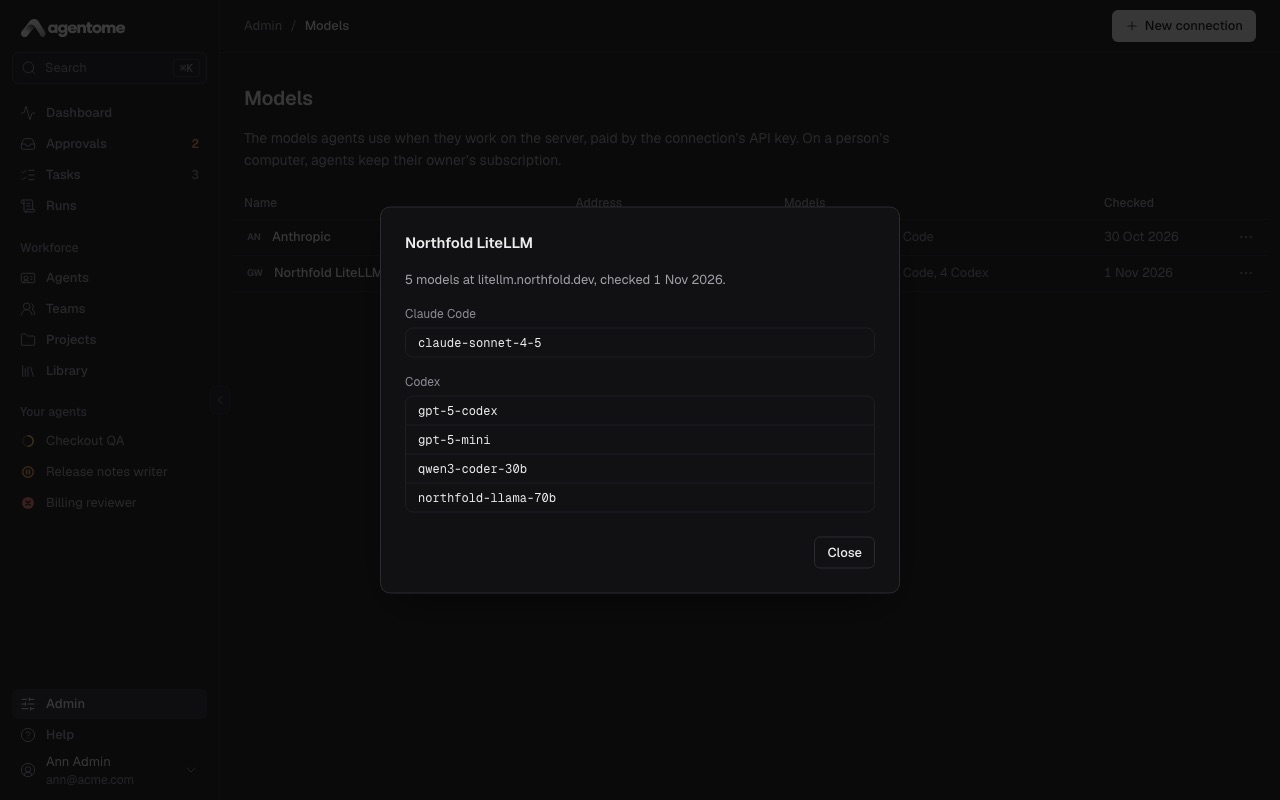
Only an admin's code connects a server seat. The By itself choice is greyed out until a model connection exists and a license key is in.
How the seat behaves:
- It takes one run, exits, and Compose starts it again clean. Its file system is read-only apart from its connection and npm's cache.
- Its image holds Codex but not Claude Code. At each start the seat installs Claude Code from a
pinned list with checksums. The first start needs a way to the npm registry and takes about half a
minute; later starts take seconds. On a network without the registry, give the seat a mirror in
NPM_CONFIG_REGISTRY. - It reaches the server and the internet, not the database.
- Its agents have no shell unless an admin turns on Allow a shell on the server for that agent, in Engine & model. With a shell the agent's commands could use the run's token, which reaches the model and the agent's tools until the run ends, so allow it only to an agent that has to run commands, such as tests. The connection's key is never on the seat.
- For more seats at once, start more:
docker compose --profile server-seat up -d --scale seat=3.
The seat's worker comes in its image. When Admin → Computers shows it out of date, start it
again from the server's version with docker compose --profile server-seat up -d.
In production, run the seat on a machine of its own, pointed at your Agentome's address instead of
http://app:3000. The full operator steps are in
Agents on the server.
Troubleshooting
| What you see | What to do |
|---|---|
| The connect command says Node.js 20 is needed | Install Node.js 20 or later, then run the command again with a new code. |
| The connect command says Claude Code is needed | Install Claude Code, run claude and sign in, then run the command again. |
| "This code has expired" or "This code is not valid" | The code expired or was used. Click Connect a computer again for a new one. |
| A task stays queued and the computer is Offline | Wake the computer and log in. The run starts at the next claim. |
| Claude Code is not signed in | On that computer, run claude and sign in (codex login for Codex). The worker asks again within a minute. |
| Status says "Taking no runs" | Nobody has used the computer for longer than its idle time. Use it, or raise Idle time, minutes in Settings. |
| Worker out of date | Run the command from Update the worker on that computer. |
| The worker says "This computer was disconnected" | The computer was revoked. Connect it again with a new code. |
More in OPERATIONS.md, Concepts and Getting started.