
Approvals and control
Agentome lets agents work on their own, and stops them where you say a person must decide. This page covers tool policies, the Approvals page, questions agents ask, notifications on your phone, limits, budgets, cost and quality.
- Tool policies
- The Approvals page
- Questions from an agent
- Who decides
- Notifications on your phone
- Limits per run
- Monthly budgets
- The cost of a run
- Agent quality
- The Dashboard
Tool policies
Every tool an agent can call through Agentome has a policy. You set it in the agent editor, in the Tools & policies section. Each tool has three choices:
| Choice | What happens when the agent calls the tool |
|---|---|
| Allow | The call runs at once. |
| Ask | The call waits in Approvals until the agent's owner approves or denies it. |
| Deny | The call is refused. The tool is not even offered to the agent in its next runs. |
Policies save as you change them. Above the list, Auto and Manual set every tool at once: Auto lets every tool run without asking, Manual makes every tool ask first. Tools you set to Deny stay denied either way.
The tools are grouped by where they reach: the code host, Jira, the task, memory, knowledge, the team, and each MCP server you gave the agent. The Workspace group is always allowed: reading and searching files, running commands in the sandbox, and keeping a to-do list. Those happen in the agent's own clone and never leave it.
A new agent starts with these defaults:
- Open a change request, Reply on a change request and Comment on the Jira issue ask first, since other people read what they produce, and it could carry what the agent read.
- Every tool of an MCP server from the Library asks first, since nobody has checked what it does.
- Everything else is allowed.
A call that waits holds its run: the run shows as waiting for approval, and goes on as soon as someone decides. The time a run waits for a person does not count against its time limit.
The Approvals page
Approvals in the sidebar lists everything that waits for you, oldest first. The page checks for new requests every few seconds.
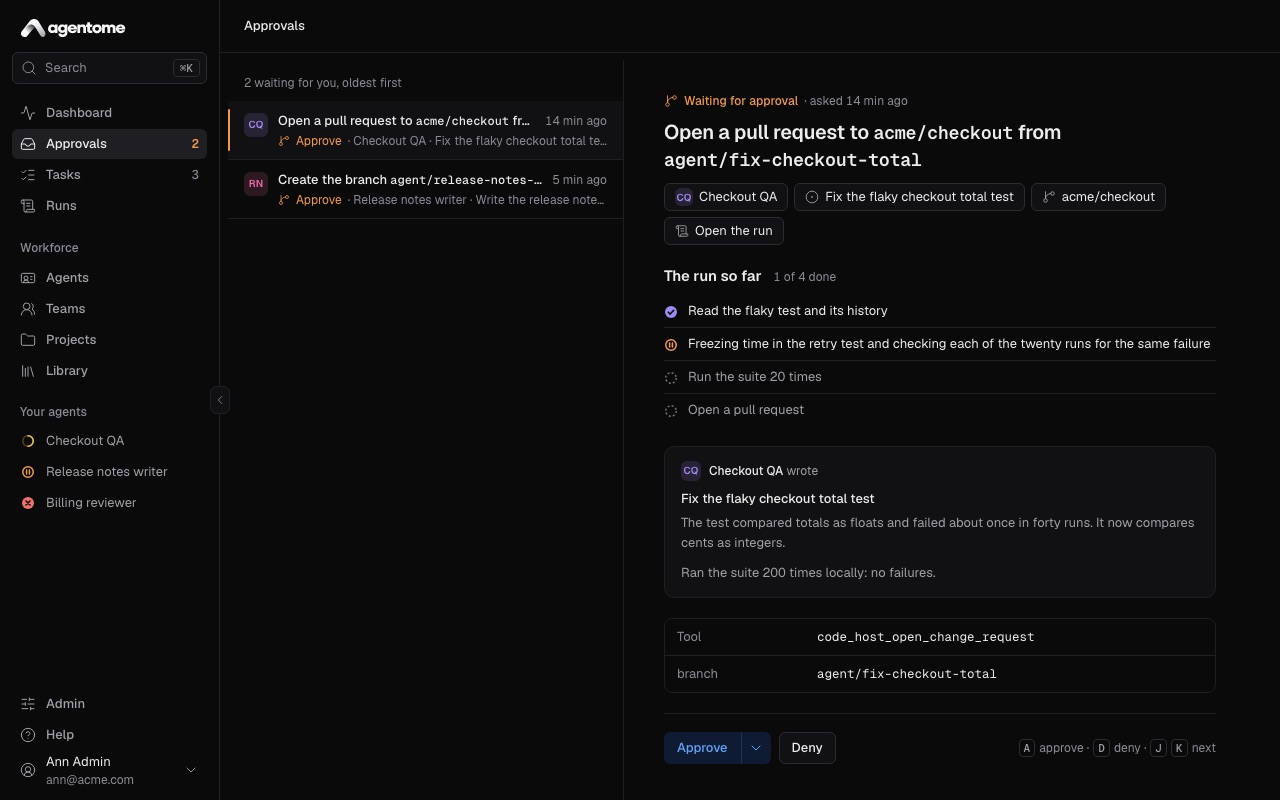
Pick a request to see:
- what the agent wants to do, in plain words;
- what the agent wrote, such as the title and description of a change request;
- the call itself, as it will be sent: the tool and every argument whole, in monospace, and every web address in it listed apart, since a picture or link in a description shows as nothing yet is loaded by whoever opens what the agent posts;
- the agent, the task and the repository, and a link to Open the run;
- The run so far: the agent's plan, with the steps it has done and the one it is on.
Then decide:
- Approve lets the call run.
- The arrow next to Approve (More ways to approve) has Approve and stop asking. The call runs, and from now on the agent uses that tool without asking you. You can change it back in the agent's Tools & policies.
- Deny opens a dialog with a Reason (optional) field, such as "Open it as a draft first". The agent reads your reason and carries on with the task without this step.
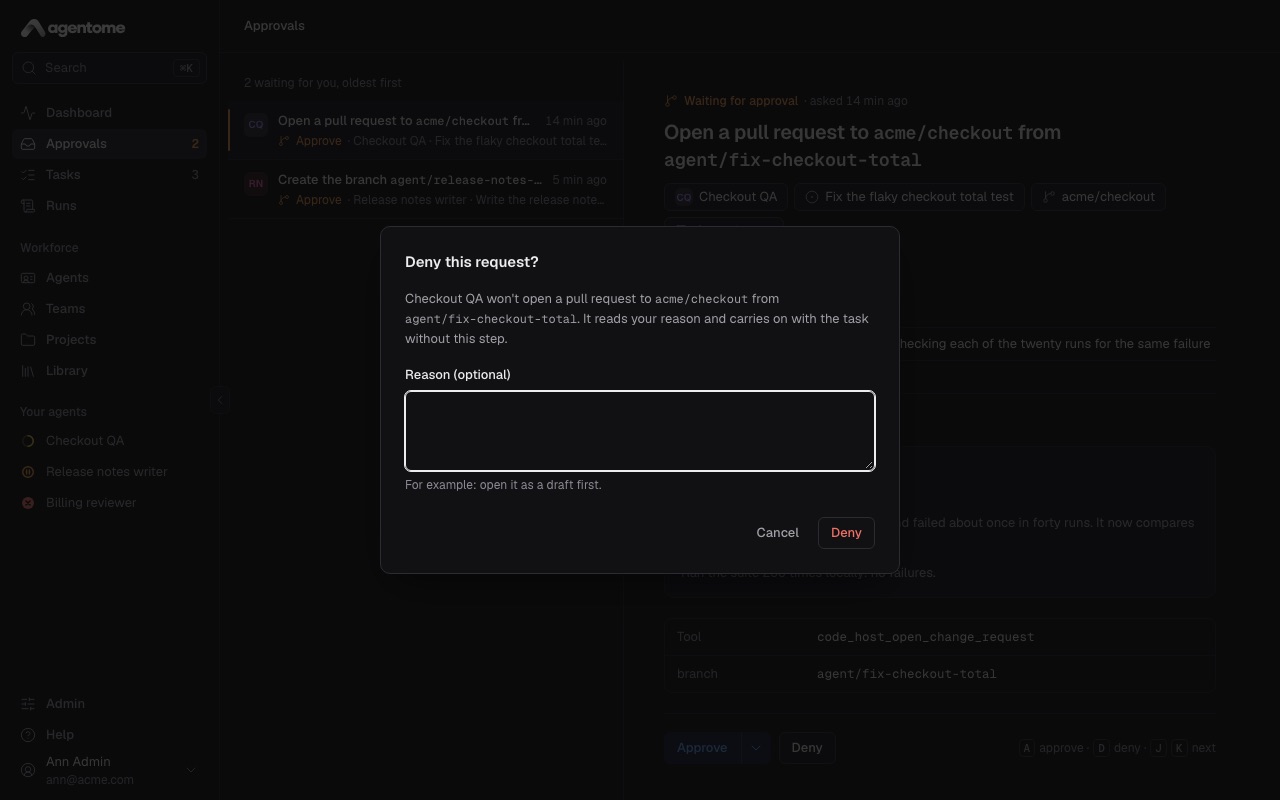
The first decision wins. If a request disappears while you look at it, someone else decided or its run ended. A request whose run was cancelled or ended is closed as denied.
Keyboard
When no text field has focus:
| Key | Action |
|---|---|
| J | Next request |
| K | Previous request |
| D | Deny it (opens the dialog) |
No key approves: Approve is a click under what the call sends. After you decide, the next request is selected.
Other places to decide
The same requests appear where you already are:
- on the Dashboard, in a Waiting for you panel;
- on the page of the task the run belongs to;
- on the page of the run.
Each shows what the call sends, whole, above its Approve. On a phone, Deny sits right in the list; Review opens the request, where it is approved under what it sends.
Questions from an agent
Every agent can ask its owner a question in the middle of a run, for a decision only a person can make: what is in scope, which of two options, what done means. The run waits for the answer. No policy changes this: a question is always asked.
A question appears in Approvals, marked Answer, and in the same panels as a request. The agent may offer answers to pick from.
- Pick an offered answer, or type your own in the field. You can edit a picked answer.
- Select Send answer. The agent reads your words and goes on.
Or select Skip. The agent is told that nobody will answer, goes on with its best judgement, and says so in its report.
The key D does nothing on a question: answer it in the form.
Who decides
Only the agent's owner decides its requests and answers its questions. Other people, admins included, do not see them in their Approvals.
When an agent is handed to someone for a time, such as during a holiday, that person is its owner until the date, and decides in the meantime. From that date the requests go back to the owner. See Agents for handing an agent over, and Administration for moving everything a person owns to a successor.
Notifications on your phone
Agentome can send push notifications to your phone and to any browser where you turn them on. You get one when:
- an agent of yours waits for your approval, or asks you a question;
- a run you started finishes or fails (for a run nobody started, such as one from Jira, the agent's owner hears of it);
- an agent of yours comments on a task;
- an agent of yours has used most of its monthly budget.
Tapping a notification opens the page it is about.
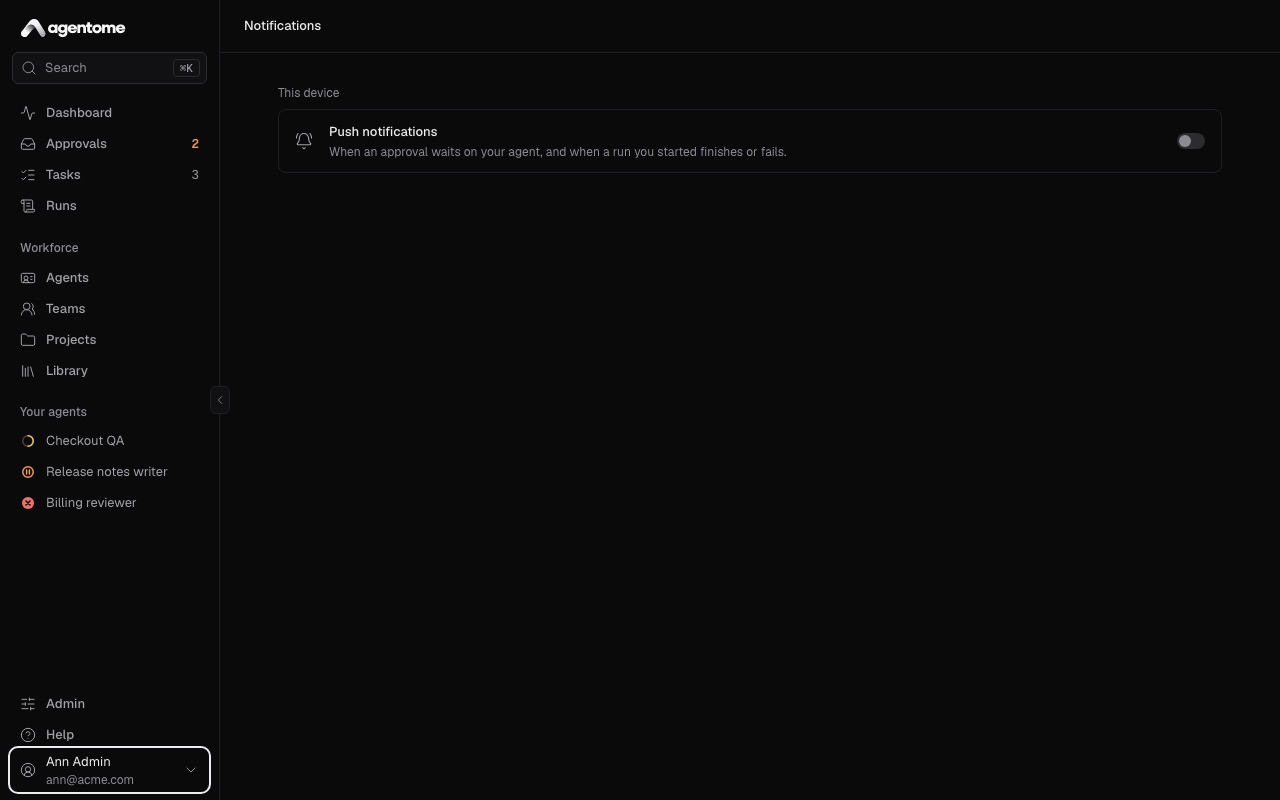
To turn them on:
- Open Agentome on the phone at its HTTPS address. Browsers deliver notifications only over HTTPS; if your installation has none, ask an admin (see HTTPS on a local network).
- On an iPhone or iPad, install the web app first: in Safari, tap Share, then Add to Home Screen, and open Agentome from the Home Screen. Notifications go only to the installed app.
- Open Notifications: on a computer, from the menu under your name at the bottom of the sidebar; on a phone, from More.
- Turn on Push notifications, and allow notifications when the browser asks.
- Select Send a test to check that it arrives.
The switch is for this device only. Turn it on on each phone and browser you want notified. If notifications are blocked for Agentome in the browser, allow them in its site settings and open the page again.
Limits per run
Every run has three limits, so that an agent that loses its way stops on its own:
| Limit | Default |
|---|---|
| Minutes | 60 |
| Turns | 50 |
| Tokens | 2,000,000 |
To change them for one agent, open the agent's Budget section and fill in Minutes per run, Turns per run or Tokens per run. An empty field uses the default shown in it. An admin sets the defaults for the whole installation (see Run limits).
When a run reaches a limit, the computer stops it and the run fails with a message that names the limit, for example "The run exceeded its time limit of 60 min and was stopped." The run keeps its transcript and the cost so far. Look at what it did before you run the task again with a higher limit or a smaller task.
Some details:
- Time spent waiting for your approval or answer does not count against the minutes.
- The turn limit applies to Claude Code. A Codex run is held to its minutes and tokens.
- Claude Code reports some token counts only at the end, so a run may stop somewhat later than its token limit says.
Monthly budgets
Needs a license key.
A monthly budget limits what an agent or a project may spend in a calendar month, in US dollars at API prices.
For an agent: in the agent's Budget section, fill in Monthly limit, USD. The section then shows what the agent spent this month against its limit.
- At 80% of the limit, the agent's owners get a notification, once a month.
- At the limit, no new run of the agent starts. A run already going finishes, held by its own limits.
- To let the agent go on, select Continue this month in the Budget section. The agent then runs past its limit until the month ends. Or raise the limit.
For a project: on the project page, select the chip with the project's spend this month (or No monthly limit), fill in Monthly limit, USD and select Save. The project's creator or an admin can change it. At the limit, no new run of the project's tasks starts until someone raises it or the month ends. An empty field means no limit.
A run refused for a budget says which limit was reached and what was spent against it.
Without a license key, a monthly limit cannot be set. One that is already set can be taken off.
The cost of a run
Every run shows its cost in its Cost section, by model. The cost is worked out from the tokens the engine reports at the end of the run, priced by the platform's price table.
The cost is always at API prices. On a person's computer, under their Claude or ChatGPT subscription, the company pays the subscription, not per token: the figure then says what the run would have cost with an API key. It is a fair way to compare agents and tasks, not an invoice.
While a run goes, the section says the cost is counted when it finishes. A model without a price in the table shows No price, and the total leaves its tokens out.
You also see cost:
- on each task, per run and in total;
- on each project, for its week;
- on the Dashboard, for the week;
- in an agent's Budget section, for the month, when it has a monthly limit.
Agent quality
Needs a license key.
The Quality section of the agent editor shows how the agent's work landed over the last 30 days.
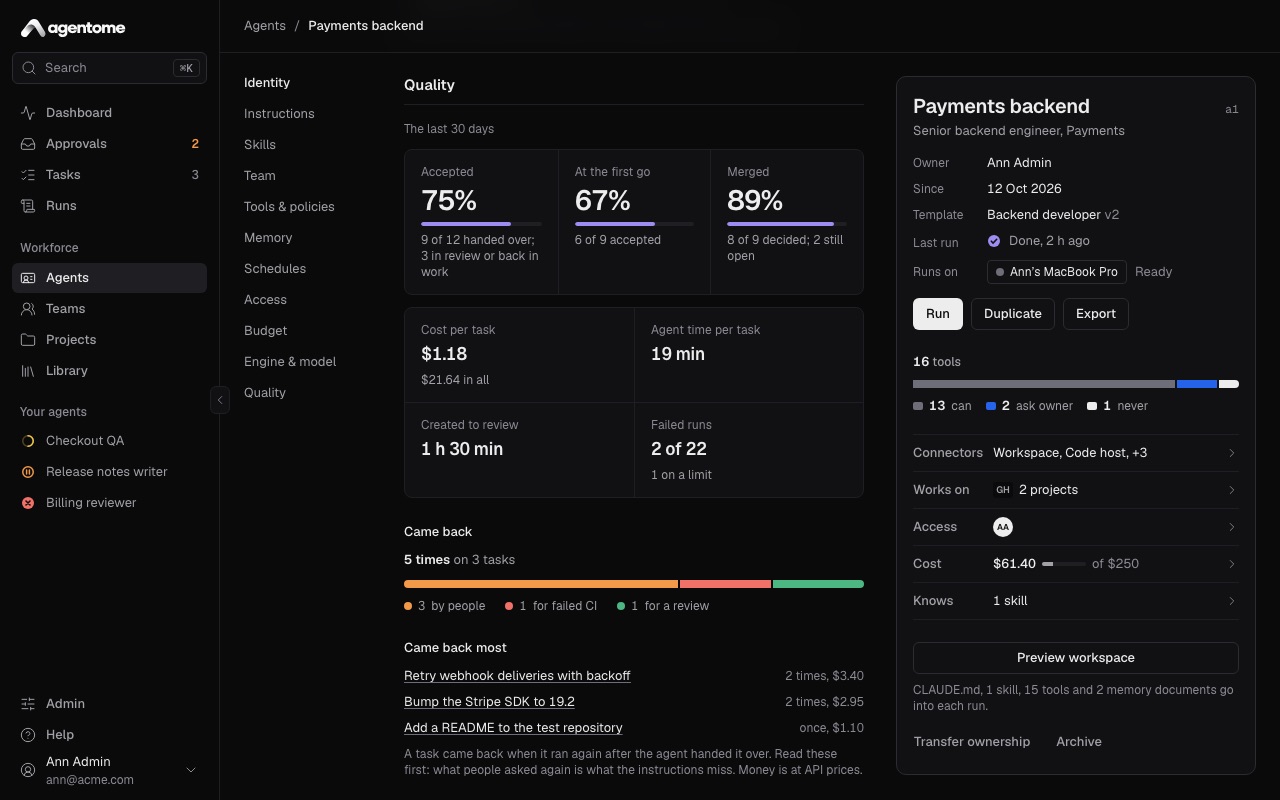
| Figure | What it counts |
|---|---|
| Accepted | Tasks accepted, out of those the agent handed over |
| At the first go | Accepted tasks that never came back |
| Merged | Change requests merged, out of those decided (shown when the agent opens them) |
| Cost per task | The median cost of a task, and the total |
| Agent time per task | How long the agent worked on a task |
| Created to review | How long from a task's creation to its review |
| Failed runs | Runs that failed, and how many of them on a limit |
Came back shows how often work came back after the agent handed it over, split by why: sent back by people, for failed CI, or for a review. Came back most lists the tasks that came back most often. Read those first: what people asked for again is usually what the agent's instructions miss.
The Dashboard
The Dashboard is the first page you see, and answers "what needs me today".
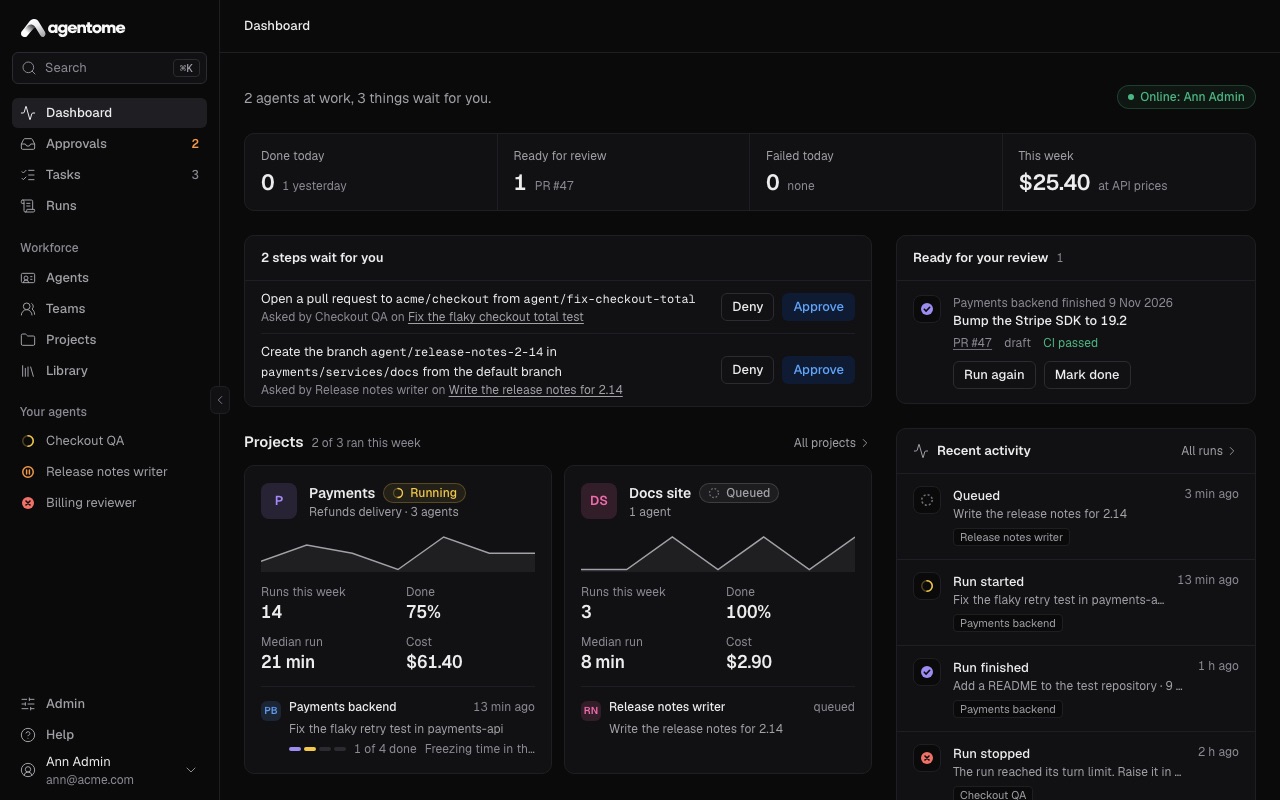
From top to bottom:
- A sentence with how many agents are at work and how many things wait for you, and who is online: the people whose computers can take a run now.
- Four figures, each a link: Done today, Ready for review, Failed today, and This week, the week's cost at API prices.
- Waiting for you: approvals and questions, decided right there.
- Projects: the projects that ran this week, with their runs going now.
- Ready for your review: tasks the agents finished, with their change request and pipeline. Select Mark done to close one, or Run again.
- Failed today: runs that failed, with the reason in words and Run again.
- Recent activity: the latest runs, with a link to All runs.
For how tasks and runs work, see Projects and tasks. For the ideas behind owners, policies and runs, see Concepts.